Microsoft Entra ID (Azure AD) Sign-In for UniFi Guest WiFi Setup
Your employees authenticate to email, file shares, internal apps, expense reports, and probably the company VPN through single sign-on (SSO) backed by Microsoft Entra ID (formerly Azure AD). Guest WiFi is often the one remaining outlier — a separate captive-portal database, separate vouchers, separate offboarding workflow. When an employee leaves, IT remembers to disable their Entra account, but the guest WiFi voucher they were given quietly continues to work.
Art of WiFi's Entra ID Sign-In option closes that loop. Employees connect to the guest SSID, click "Sign in with Microsoft" on the splash page, sign in with their existing Entra credentials, and their device is authorized. When they leave the organization and IT disables their Entra account, the captive portal's background re-validation revokes their guest WiFi session within hours — automatically, no manual cleanup required.
This guide walks through how the feature works, what an IT admin needs to set up in the Entra admin center, and the configuration options available on the captive-portal side.
What Entra ID Sign-In does
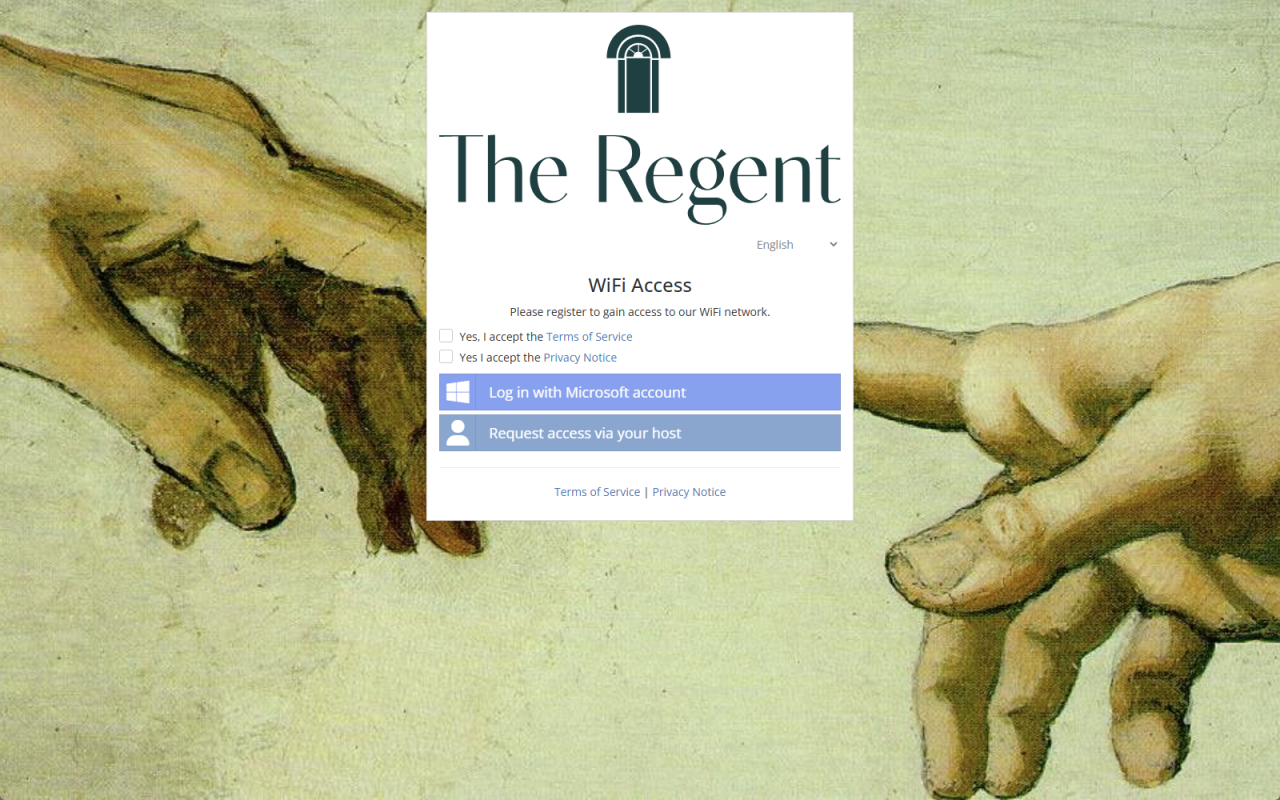
A "Sign in with Microsoft" button is added to your captive-portal splash page alongside any other authentication methods you've enabled (voucher codes, sponsored access, social login, etc.). When the guest clicks it, they're sent through standard Microsoft OAuth 2.0 (against the Microsoft Graph v2.0 endpoint) to sign in with their Entra ID account. After a successful sign-in, the portal captures their first name, last name, email address, and unique Entra profile ID, then authorizes their device on the UniFi network.
The whole flow uses Microsoft's standard OAuth — no special licence tier required, no proprietary handshake. Conditional Access policies, MFA, sign-in risk policies, and any other Entra controls you've configured all apply at the Microsoft sign-in step before the user even returns to the portal.
The guest experience
Connect to the guest SSID. Captive portal splash page opens automatically.
Tap "Sign in with Microsoft". Browser redirects to the standard Microsoft sign-in screen.
Sign in. Username + password (and MFA if your tenant requires it) — same as for any other Microsoft service the user accesses.
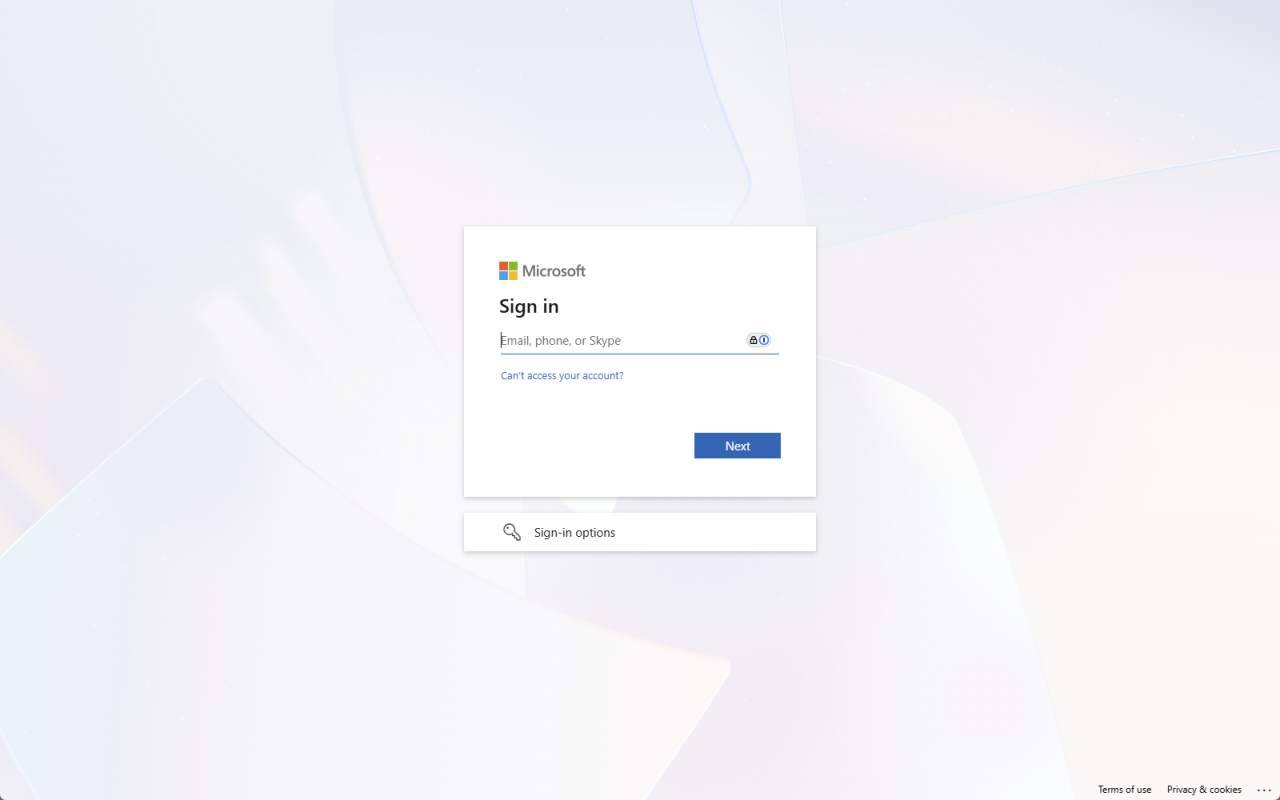
First-time consent. Microsoft asks the user to consent to the portal app reading their basic profile (User.Read scope). One-time per user per tenant.
Return to the portal. Microsoft redirects back; the captive portal authorizes the device and shows a confirmation page.
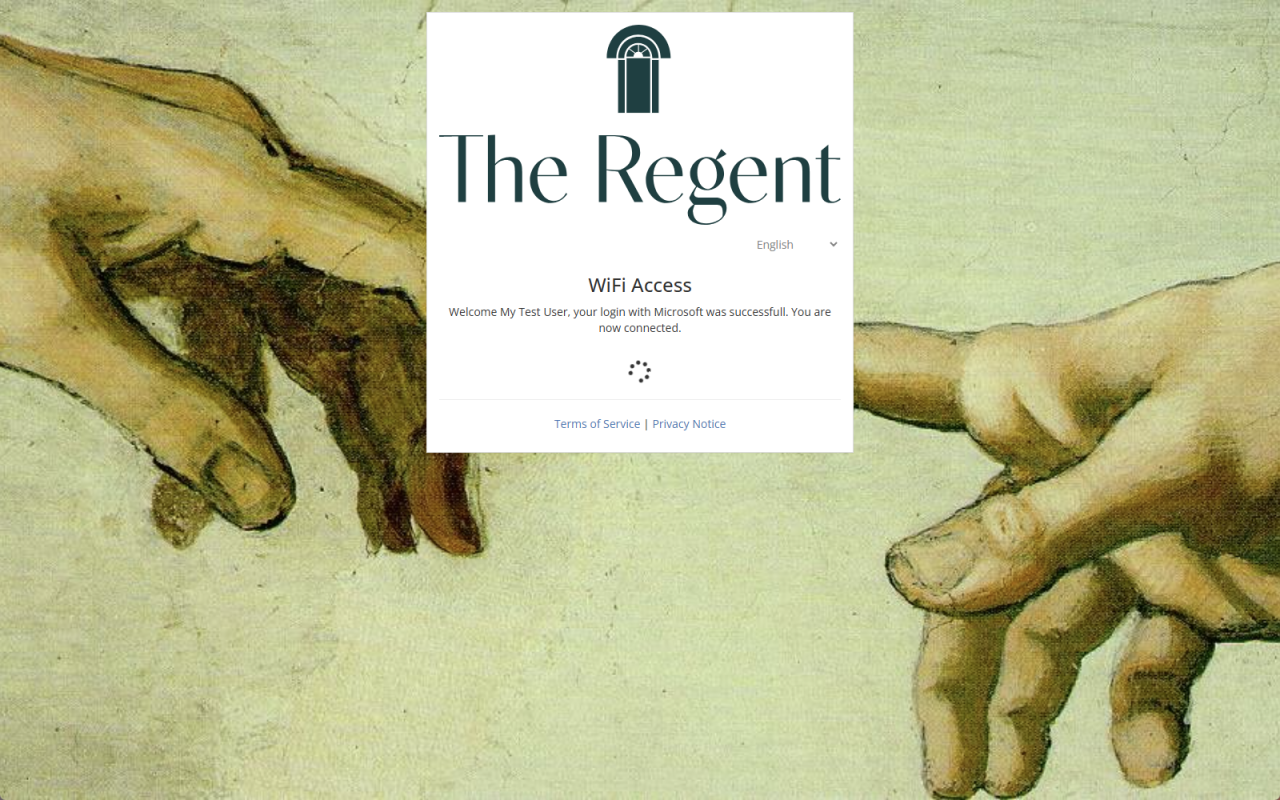
On subsequent visits (or when the user has an active Microsoft session in the browser already), steps 3 and 4 are silent — the OAuth flow completes without user interaction.
IT admin setup
How to add Microsoft sign-in to your UniFi captive portal
Setup happens in two places. On the Microsoft Entra admin center side, you register a new application that the captive portal authenticates against. This produces three values you'll need: the Application (client) ID, the Directory (tenant) ID, and a Client Secret. Step-by-step instructions for the Entra side are kept up to date inside our admin panel — Microsoft changes the Entra UI from time to time and we update the walkthrough whenever that happens.
On the captive portal admin panel side, the configuration is straightforward:
Find the Microsoft / Azure AD section in your site's settings and toggle Microsoft Entra ID Sign-In on.
Paste the Application (client) ID, Client Secret, and Directory (tenant) ID copied from Entra.
Set Max concurrent devices to a number, or leave it at 0 for unlimited.
If you want background re-validation (recommended for corporate use — see the next section), toggle that on and pick an interval: every 1 hour, 6 hours, or 24 hours.
Save.
The "Sign in with Microsoft" button starts appearing on the captive-portal splash page immediately.
Concurrent device limits
The Max concurrent devices setting caps how many devices a single Entra user can have authorized at the same time. The portal counts active authorizations with the same Entra profile ID and rejects the next one once the limit is hit.
0(default) — unlimited.1— one device per user. Strictest; useful when the goal is "this is the user's work device".3to5— a sensible middle ground for BYOD environments (laptop + phone + tablet).
When a user hits the limit, they're shown a "too many devices" page instead of being authorized. The oldest device's session has to expire (or be revoked manually) before they can authorize a new one.
Automatic WiFi offboarding: periodic re-validation keeps access in sync with Entra
This is the feature that closes the offboarding loop. When enabled, a background job periodically checks every active Entra-authorized session against the Microsoft Graph API to confirm the user still exists in the tenant and is still enabled.
How it works under the hood:
Toggle Periodic re-validation on and pick an interval: every 1 hour, every 6 hours, or every 24 hours.
A background task runs per site based on the configured interval.
For each site with the feature enabled, it batches active authorizations (up to 20 users per Microsoft Graph batch call) and queries their status.
DisabledorNot Foundusers are identified and their devices are unauthorized on the UniFi network and the captive portal authorization records are updated.If the UniFi controller is temporarily unreachable when the revocation needs to happen, the revocation is queued and retried for up to 24 hours.
The admin UI shows the last sync time and last sync status for each site. There's also a "Run check now" button that bypasses the interval gate — useful when you've just disabled an employee in Entra and want to confirm their WiFi session is killed within minutes rather than hours.
For a typical corporate setup, a 1-hour interval gives you near-immediate revocation after offboarding without putting meaningful load on Microsoft Graph (batched calls scale well). A 24-hour interval is fine when the offboarding tempo is slower.
Where Entra ID Sign-In fits
Compared to the other authentication options:
Method | Friction for guest | IT admin overhead | Audit trail | Best for |
|---|---|---|---|---|
Open / Terms-only | Lowest | Lowest | Minimal | Public venues |
Voucher codes | Medium | High (per-voucher) | Strong | Hotels, conferences, paid access |
Sponsored Access | Medium | Low (depends on mode) | Strong | Vendor/visitor-heavy corporate offices |
Social login (Facebook / Instagram) | Low | Low | Email-only | Consumer venues |
Entra ID Sign-In | Lowest for already-signed-in employees | One-time setup + automatic re-validation | Strong (Entra ID + portal logs) | Corporate, education, government — any org running Entra ID |
Entra ID Sign-In is uniquely strong when:
The org already runs Entra ID for the rest of its identity stack (true for the vast majority of M365 customers).
The user base is mostly employees rather than external visitors. (For external visitors, pair Entra ID with Sponsored Access on the same portal.)
Compliance requires that guest WiFi access automatically reflects current employee status — no orphan sessions after offboarding.
Use cases
Corporate offices — employees use the same login they use for everything else; offboarded employees lose WiFi within the validation interval.
Hybrid workspaces — staff personal devices (BYOD) authenticate via Entra without the IT admin pre-provisioning each device.
Co-working spaces with member organizations — each member org has its own Entra tenant; configure a separate captive portal per tenant (each pointing at the same UniFi site) and route guests by SSID.
Universities and schools — faculty/staff authenticate with their institutional Microsoft account; students typically get a separate auth method.
Government and regulated environments — strict offboarding compliance with auditable revocation timing.
See it in action
Entra ID Sign-In is available in both the Captive Portal as a Service (CPaaS) and the self-hosted Captive Portal software tiers. Contact us for a demo configured against your Entra tenant, or start with the free trial to wire it up against your own environment.
Frequently Asked Questions
Does this require Entra ID P1 or P2?
No. Standard Microsoft Entra ID (included with every Microsoft 365 subscription) is enough for OAuth sign-in. Conditional Access policies do require P1 — but they're not required to use the captive-portal integration.
What Microsoft Graph permissions does the app need?
`User.Read` (delegated) for sign-in; `User.Read.All` (application) with admin consent if you also enable periodic re-validation, since the validation job queries user status without a user session.
Does it support MFA?
Yes. MFA is enforced at the Microsoft sign-in step, before the user is sent back to the portal. You configure it on the Entra side; the captive portal sees the same outcome regardless.
Can Conditional Access policies be applied?
Yes — they apply at the Microsoft sign-in step as with any other Entra-integrated app. A "block sign-in from outside the office network" policy, for example, would prevent the guest WiFi authentication from succeeding when the user is signing in from elsewhere.
What happens to existing authorized devices when an employee is disabled in Entra?
Within the validation interval, the captive portal calls UniFi's unauthorize_guest endpoint and ends the device's session. The next time the device tries to use the network, it sees the captive portal again — but the user can no longer sign in.
Does it work alongside other authentication methods on the same portal?
Yes. The "Sign in with Microsoft" button appears alongside whatever else you've enabled — voucher codes, sponsored access, social login, etc. Each guest picks their own path on the splash page.
Which UniFi hardware does this work with?
All modern UniFi hardware such as the UDM, UDM-Pro, UDM SE, UCG Ultra, UCG Max, Cloud Keys, and self-hosted UniFi OS and Network Application installations.