Sponsored Guest WiFi Access for UniFi Networks: How It Works
If you run guest WiFi at an office, healthcare facility, school, or any place with a steady stream of expected visitors, you've probably faced the same trade-off. Open guest WiFi is convenient but offers no accountability. Voucher codes add accountability but place a constant administrative burden on reception staff who print, hand out, and reset codes all day.
Sponsored Access is a third option that sits between those two. A guest connects to the WiFi, completes a short request request form on the captive portal, and their access is approved (or declined) by a sponsor — typically an employee already on-site. No vouchers, no receptionist scrambling for printed cards, and a clean audit trail of who let whom onto the network.
This guide walks through how Art of WiFi's Sponsored Access feature works on UniFi networks — the guest experience, the sponsor experience, the configuration options available to IT admins, and where it fits relative to the other authentication methods you might be considering.
What is Sponsored Access?
Sponsored Access is a captive-portal authentication method where a guest requests WiFi access through a request form, and an internal sponsor (an employee, host, or designated approver) confirms the request before the guest's device gets internet access.
The flow has four moving parts:
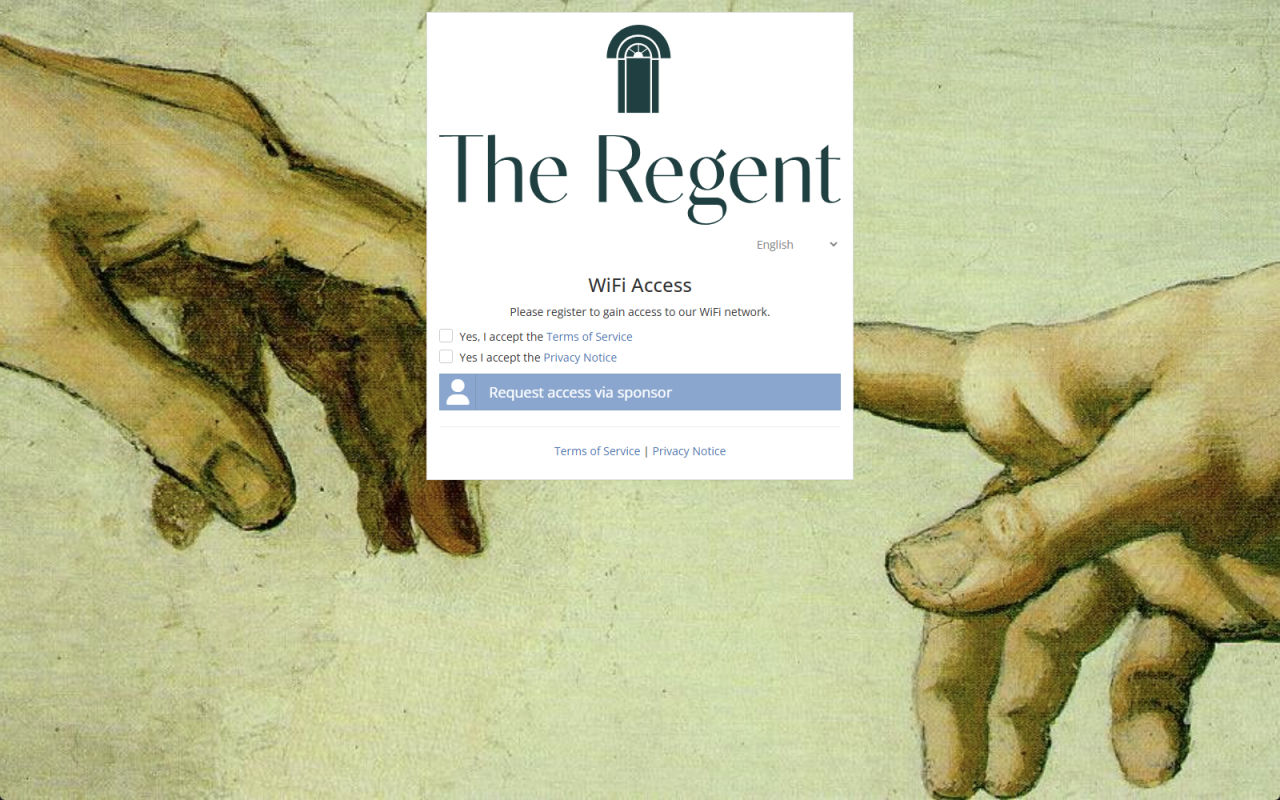
The guest — connects to the guest SSID, sees the captive-portal splash page, picks "Request access via sponsor", and fills in a short form with their details and (optionally) their sponsor's email address.
The notification — once submitted, the sponsor receives an approval request via email, via a Slack channel, or both.
The sponsor — clicks the approval link in the notification, picks one of the pre-configured access durations (e.g., 1 hour, 4 hours, until end of day), and confirms.
The grant — the guest's device is automatically authorized on the UniFi network for the chosen duration. The guest receives a confirmation via email or, optionally, SMS.
The whole exchange typically takes under a minute when the sponsor is at their desk or on Slack.
The guest experience
From the guest's side, the flow is intentionally short. After connecting to the guest SSID, the captive portal opens automatically on most devices. The splash page presents the available access methods — Sponsored Access is just one of them, sitting alongside other options like social login, email capture, or voucher codes (whichever your portal is configured to offer).
When the guest taps "Request access via sponsor", a request form appears. The fields shown on the form are fully configurable by the IT admin, but the typical set includes:
First name and last name
Email address (for the access confirmation)
Phone number (optional, with default country pre-selected)
Company name (useful for vendor/contractor scenarios)
The sponsor's email address (in routing modes where the guest specifies their sponsor)
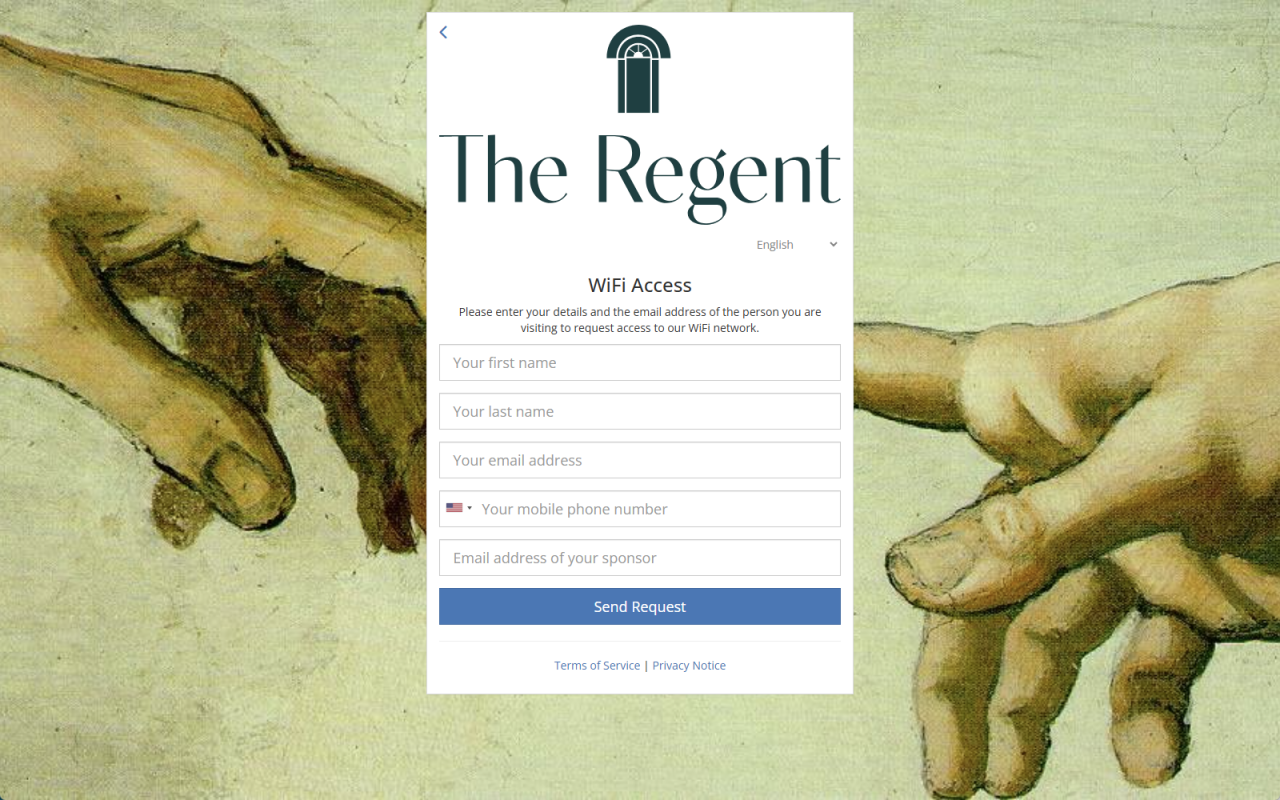
After submitting the form, the guest sees a "Your request has been sent for approval" page that automatically polls for the result. Once the sponsor approves, the guest's device is authorized in the background and the splash page transitions to a confirmation screen — no need to disconnect and reconnect.
The sponsor experience
Sponsors receive the approval request through one of three channels, each configurable per site:
Email notification. The sponsor gets an email with the guest's details where the sponsor picks the approval link for one of the pre-defined durations. Clicking the link opens a small confirmation page.
Slack channel notification. When the IT admin has configured a Slack webhook URL, requests post into a designated Slack channel. Any approver with access to the channel can click through to the approval page from Slack — useful in distributed-team environments where Slack is the daily-driver communication tool.
Both, simultaneously. Many organizations enable both channels so that the sponsor isn't blocked on email alone.
The approval page itself is minimal: it shows the guest's submitted information and offers an "Approve" button. Once the sponsor approves, the captive portal calls the UniFi controller's guest authorization endpoint and the device gets network access for the selected duration.
IT admin configuration
This is where Sponsored Access pulls ahead of simpler authentication methods — the controls available to the IT admin are detailed enough to fit a wide range of operating models.
Approver routing modes
The way sponsor approvals are routed is the single biggest configuration choice, and there are three modes to pick from:
1. Centralized approver. All requests go to a single fixed email address — typically a receptionist, office manager, or facilities team. The guest-entered sponsor email (if shown on the form) is ignored; every request lands with the same designated approver. Simplest to configure; brittle if that one approver is unavailable.
2. Domain-restricted approver. The IT admin pre-configures a list of allowed email domains (e.g., acme.com). The guest enters their host's email on the request form, and if the email's domain matches one of the allowed entries the request routes directly to that host. Emails at domains not on the list are rejected outright — the guest sees an error. This is the lowest-overhead mode for organizations with consistent corporate email domains: any employee at one of the allowed domains can authorize a visiting contractor, with no per-sponsor allowlist to maintain.
3. Approved list. The IT admin pre-configures both a list of allowed domains and a list of approved sponsor emails. The guest enters their host's email; domain validation runs first (unmatched domains are rejected). If the email passes the domain check and is also on the approved sponsors list, the request routes directly to that sponsor. If the guest-entered sponsor email is not on the approved sponsors list, the request is routed to a configured fallback email — typically IT or facilities — for manual triage. Use this mode when you want strict control over who can authorize guests, with a graceful path for unrecognized requests.
Configurable request form
Each field on the guest's request form is individually toggleable (enabled / disabled) and, separately, individually configurable as required / optional. The available fields:
First name
Last name
Email
Phone (with default country code that pre-selects in the country picker)
Company name
Sponsor's full name (informational only, not used for routing)
Sponsor's email (used for routing in modes that allow guest-specified sponsors)
Fields that don't fit a particular site's workflow can simply be disabled — no need to leave them visible-but-optional.
Access durations
Up to three duration buttons are available on the sponsor's approval page. Each is independently configurable with:
A numeric value
A time-unit multiplier (e.g., minutes, hours, days)
A display label (e.g., "1 hour", "Until end of day", "1 week")
A common configuration for an office is: "1 hour" for short meetings, "4 hours" for half-day visitors, and "End of day" for contractors. A healthcare clinic might use: "30 min", "2 hours", "Until end of shift".
Bandwidth and data caps
Sponsored sessions can be capped independently of other access methods on the same captive portal:
Upload speed limit in Kbps
Download speed limit in Kbps
Total data transfer limit in MB
This is useful when you want to prevent a guest from saturating the company internet connection or downloading large files. The limits are enforced by the UniFi controller's QoS rules on the authorized session, not by the captive portal itself.
Notification settings
The Slack webhook URL is a single field. Once set, all approval requests post to that channel until the field is cleared. SMS notifications to the guest (on approval) can be toggled on per site — this is independent of the sponsor notification channel.
Where Sponsored Access fits
Compared to the other authentication options available on the Art of WiFi captive portal:
Method | Friction for guest | Admin overhead | Audit trail | Best for |
|---|---|---|---|---|
Open / Terms-only | Lowest | Lowest | Minimal | Cafés, retail — high churn, low risk |
Email capture | Low | Low | Email-only | Marketing lead gen |
Voucher codes | Medium | High (per-voucher) | Strong | Hotels, conferences, paid access |
Social login | Low–Medium | Low | Strong | Consumer venues with social affinity |
Sponsored Access | Medium | Low (depends on mode) | Strong | Corporate offices, healthcare, education, vendor-heavy environments |
PPSK | Low (one-time setup) | Medium | Strong | Long-term recurring guests |
Sponsored Access shines specifically in environments where:
Most visitors are expected (not walk-ins) and have a specific host
The host should be the one accountable for the visitor's network access
There's no front-desk staff dedicated to handing out vouchers
The organization needs an audit trail tying every guest session to a specific approving employee
It's a poor fit for high-churn public environments (think coffee shops or airport lounges) where the per-request approval friction would create constant queues.
Common use cases
Corporate offices — visiting contractors, vendor reps, interview candidates, client meetings. Domain-restricted mode is ideal here: any employee can approve their own visitor without IT involvement.
Healthcare facilities — outpatient visitors, pharmaceutical reps, IT contractors. The audit trail satisfies compliance requirements while keeping the front desk out of the loop.
Schools and campuses — parents at events, guest lecturers, contractors. Faculty members serve as natural sponsors.
Coworking spaces — short-term guests of members. The member sponsors their own visitors, removing the load from the coworking operator.
Real estate showings — prospective tenants/buyers get WiFi access via the showing agent.
Conference rooms with hot-desking — visiting team members from other offices can be sponsored by anyone already in the building.
See it in action
Sponsored Access is available in both the Captive Portal as a Service (CPaaS) and the self-hosted Captive Portal software tiers. Contact us for a demo configured against your environment, or start with the free trial to test the workflow against your own UniFi setup.
Frequently Asked Questions
What happens if no sponsor responds to the request?
The guest's request page continues polling and shows the pending state. There's no automatic decline — requests stay open until a sponsor explicitly approves.
Can different SSIDs route to different sponsors?
Yes, but the routing happens in our software, not in UniFi. UniFi itself redirects every unknown guest device on a guest SSID to the same single captive-portal URL configured on the UniFi site. To split the experience per SSID, you create multiple captive portals in our software — all pointing at the same UniFi site — and declare for each captive portal which SSID(s) it should handle. When a guest arrives, our software reads the SSID their device is connected to and dispatches them to the matching captive portal, which has its own sponsor routing, approved-sponsor list, durations, and bandwidth caps. Marketing-floor and Engineering-floor SSIDs end up at separate captive portals with separate sponsor configurations, all managed by the Art of WiFi platform.
Which UniFi hardware does this work with?
All modern UniFi hardware: UDM, UDM-Pro, UDM SE, UCG Ultra, UCG Max, Cloud Keys, and self-hosted Network Application installations.
Does Sponsored Access work alongside other authentication methods on the same portal?
Yes. You can offer Sponsored Access as one option among several (e.g., alongside vouchers or social login). The guest picks which path applies to them on the splash page.
What data is stored about each session?
The form fields the guest submitted, the sponsor's email, the approval timestamp, the device's MAC address, and the duration of the session. All retained per the data retention period configured for the captive portal site (configurable, typically aligned with the operator's GDPR or compliance policy).
Posted on: June 25th, 2026
By: Erik Slooff
On: Captive Portals
sponsored
access
unifi
captive
portal
About the author

Erik Slooff
Owner & Lead Developer
For more than 10 years I’ve specialised in UniFi® guest-WiFi solutions—ranging from email-capture and SMS phone-number verification to Azure Entra ID single-sign-on and multi-site analytics dashboards. Posting as @slooffmaster in the Ubiquiti Community, I’ve contributed 160 + posts, 8300 + replies and 300 + accepted solutions that help network admins worldwide. Today our solutions secure and provide analytics for 2500 + UniFi networks across retail, hospitality, government and education in 70 + countries. Customers use our solutions to authenticate users, meet regional privacy requirements (GDPR, CCPA, etc.) and unlock marketing or loyalty insights, and more. When I’m not refining captive-portal flows, you’ll find me benchmarking new UniFi firmware or contributing to our open-source code on GitHub.