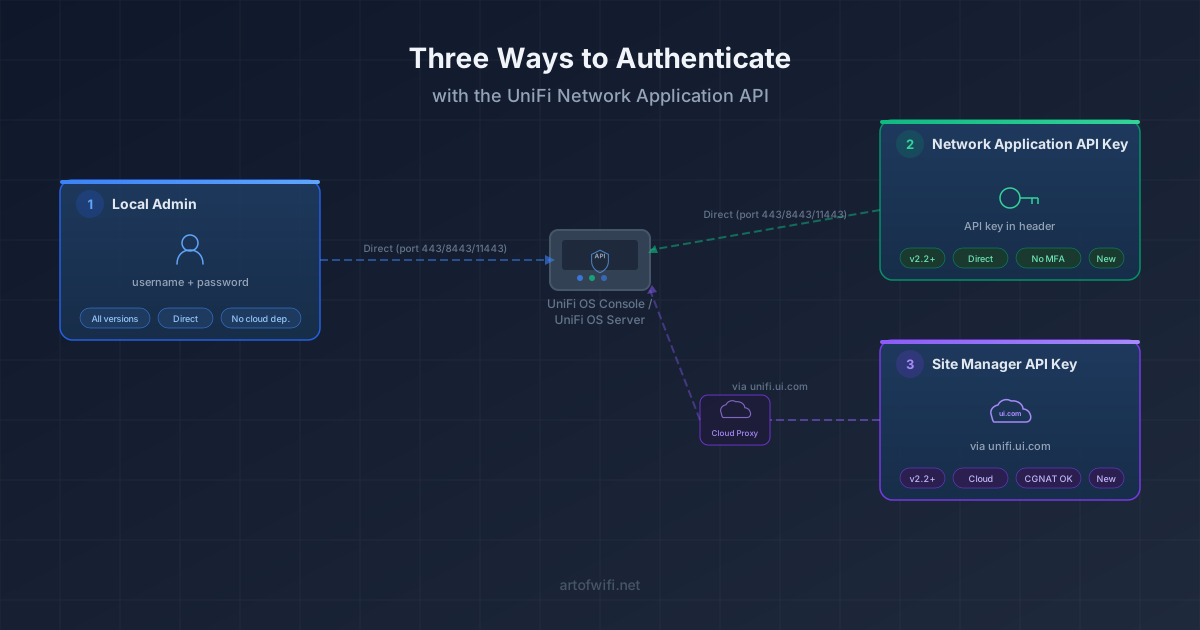
UniFi API Authentication: Local Admin vs. API Key vs. Site Manager
The following Art of WiFi products now support three ways to connect to the UniFi Network Application API:
In addition to the familiar local admin credentials, you can now authenticate with a Network Application API Key or connect through unifi.ui.com using a Site Manager API Key.
This guide explains how each method works, when to use it, and what trade-offs to consider. If you're already using a local admin account and everything works, there's no urgency to switch. But if you're dealing with CGNAT, Double NAT, dynamic IPs, or want to simplify credential management, read on.
Quick comparison
Method | Connection | Best for | Requires |
|---|---|---|---|
Local admin credentials | Direct to controller | Broadest compatibility; works with all product versions | Direct network path + firewall rules; username and password; works with all controller types |
Network Application API Key | Direct to controller | Simpler auth, no password rotation, no MFA concerns | Direct network path + firewall rules; API key from Network Application; UniFi OS console or Server only |
Site Manager API Key | Via unifi.ui.com | Consoles behind CGNAT, dynamic IPs, no direct connectivity needed | Internet access from your integration host; API key from Site Manager at unifi.ui.com; UniFi OS console or Server only |
Rule of thumb: If you have a stable direct connection to the controller, use an API Key or local admin. If you don't, use Site Manager.
Background: why three methods?
Historically, the UniFi Network Application only supported username/password authentication. When Ubiquiti enforced MFA on cloud (UI.com) accounts in July 2024, automated integrations broke. The community-wide fix was switching to local admin accounts, which remain exempt from MFA.
Since then, Ubiquiti has introduced an official API with token-based authentication via API keys, both at the Network Application level and through the Site Manager at unifi.ui.com. We have built support for all three authentication methods into our products, giving you the flexibility to choose the connection method that best fits your network setup.
Method 1: Local Admin Credentials (username and password)
How it works
You create a dedicated local-only admin account on the UniFi console and authenticate using its username and password. This is the only method that works with all controller types, including the legacy self-hosted Network Application.
Requirements
Direct network connectivity between your integration host and the UniFi console (port 443 for UniFi OS consoles, 8443 for self-hosted controllers, 11443 for UniFi OS Server).
A local admin account with Remote/Cloud access disabled.
Appropriate role (typically Site Admin; View Only for read-only use cases).
Advantages
Works with all versions of our products, including older releases.
Well-understood, widely documented, battle-tested across thousands of deployments.
No dependency on Ubiquiti's cloud infrastructure.
Disadvantages
Requires password management and periodic rotation.
Needs direct connectivity. Doesn't work if the console is behind CGNAT or has a dynamic WAN IP without Dynamic DNS.
Requires firewall rules when connecting over WAN.
Not available when the controller is a member of a UniFi Fabric.
When to use
This is the safe default, especially for existing deployments that already have it working. If your integration host can reach the controller directly and you're comfortable managing a service account, there's little reason to change.
Setup
See our detailed step-by-step guide: Use a Local Admin Account for UniFi API & Captive Portal Integrations.
Method 2: Network Application API Key (direct connection)
How it works
Instead of a username and password, you generate an API key within the UniFi Network Application. Your Art of WiFi product authenticates using this key in request headers. No session or cookie management needed, lower chance of hitting rate-limiting errors.
Requirements
Latest version of your Art of WiFi captive portal or UniFi Device Search Tool (other products will be updated soon).
Direct network connectivity to the console (same ports as local admin: 443 / 8443 / 11443).
An API key generated from the Network Application's settings.
A UniFi OS console or UniFi OS Server. The legacy self-hosted Network Application does not support API key authentication.
How to create an API key
Log into your UniFi Network Application.
Navigate to Integrations → Create New API Key (exact wording may vary by version).
Create a new API key. Give it a descriptive name (e.g.,
aow-captive-portal).Copy the key immediately. It won't be shown again.
Store it securely (password manager or secrets vault).
Note: The exact menu location may differ between Network Application versions 8.x, 9.x, and 10.x. Look for API-related settings under the Control Plane or Advanced sections.
Advantages
No password to rotate. The key is long-lived until revoked.
No MFA concerns. API keys bypass the authentication flow entirely.
Simpler integration setup: one key instead of a username + password pair.
Cleaner from a security audit perspective: keys can be individually revoked without affecting other accounts.
Disadvantages
Still requires direct connectivity, with the same firewall and networking considerations as local admin.
Requires the latest version of your Art of WiFi product; older releases only support local admin credentials.
If the key leaks, it grants access until manually revoked or when the key expires.
When to use
When you have a direct connection and want to simplify credential management. Particularly attractive for new deployments, automated provisioning, or environments where password rotation is operationally costly.
Method 3: Site Manager API Key (connection via unifi.ui.com)
How it works
Instead of connecting directly to the controller, your integration connects to unifi.ui.com using a Site Manager API key. Ubiquiti's cloud infrastructure proxies the request to your controller. The controller itself doesn't need to be reachable from your application host.
Requirements
Latest version of your Art of WiFi captive portal or UniFi Device Search Tool (other products will be updated soon).
Your controller must be adopted to a UI.com account and connected to Ubiquiti's cloud (the default for most setups).
A Site Manager API key generated at unifi.ui.com. The API key must be created by the console owner.
Internet access from your integration host (outbound HTTPS to unifi.ui.com).
A UniFi OS console or UniFi OS Server. The legacy self-hosted Network Application is not supported via Site Manager.
How to create a Site Manager API key
Go to unifi.ui.com and log in with your UI.com account.
Navigate to Settings → API Keys (or look for API settings in the top-level menu).
Generate a new API key with an appropriate scope.
Copy and securely store the key.
Advantages
No direct connectivity required. This is the key differentiator. Your console can sit behind CGNAT (Starlink for example), a dynamic IP, or a restrictive firewall. As long as it's cloud-adopted, Site Manager can reach it.
No firewall rules to manage on the console side.
One API key can potentially access multiple sites/consoles under the same UI.com account.
Ideal for managed service providers (MSPs) overseeing many client sites.
Disadvantages
Depends on Ubiquiti's cloud infrastructure. If unifi.ui.com is down, your integration can't reach the console.
Slightly higher latency compared to direct connections (requests are proxied).
The console must remain cloud-adopted; if someone disables cloud access, the connection breaks.
When to use
When direct connectivity isn't possible or practical. Common scenarios include: consoles with dynamic WAN IPs and no DDNS, ISPs using CGNAT (used by Starlink, also increasingly common with IPv4 exhaustion), MSPs managing dozens or hundreds of remote client sites, and hosted or distributed environments where opening inbound firewall rules is not an option.
Side-by-side comparison
| Local Admin | API Key (Direct) | Site Manager |
|---|---|---|---|
Auth mechanism | Username + password (session cookie) | API key | API key |
Connection | Direct to controller | Direct to controller | Via unifi.ui.com |
Product support | All versions | Latest release | Latest release |
Direct network path needed? | Yes | Yes | No |
MFA concerns? | No (local accounts exempt) | No | No |
Works behind CGNAT? | No | No | Yes |
Works with UniFi Fabric? | No | Yes | Yes |
Cloud dependency? | None | None | Yes (unifi.ui.com) |
Controller types | All (incl. legacy self-hosted) | UniFi OS only | UniFi OS only |
Multi-site management | One account per controller | One key per UniFi OS console | One key for all sites |
Art of WiFi product support | All products | Captive portals, UniFi Device Search Tool (more coming) | Captive portals, UniFi Device Search Tool (more coming) |
Migrating from local admin to an API key method
If you're currently using a local admin account and want to switch:
Generate the appropriate API key (Network Application or Site Manager, depending on your connectivity situation).
Update the connection settings in your Art of WiFi product. This is done through the site authentication configuration: select the new connection type and enter the API key.
Test the connection. Verify that your captive portal, reports, or device queries work as expected.
Keep the local admin account as a fallback until you're confident the new method is stable. You can disable or remove it later.
There is no need to migrate if your current setup works and you're satisfied with it. All three methods will continue to be supported.
Further reading
Use a Local Admin Account for UniFi API & Captive Portal Integrations (step-by-step local admin setup guide)
Art of WiFi UniFi API Client on GitHub (source code, changelog, and API reference)
Art of WiFi Captive Portal Solutions (our full captive portal product line)
UniFi Device Search Tool (search and manage devices across your UniFi network)
Frequently Asked Questions
Do I need to update my product to use the new methods?
Yes. API key authentication (both Network Application and Site Manager) requires the latest release of your Art of WiFi captive portal or UniFi Device Search Tool. Update to the most recent version to access all three authentication methods.
Can I mix methods across different sites?
Absolutely. You might use a direct API key for a console in your own data center and a Site Manager key for a remote client's console behind CGNAT. Our products let you configure authentication per site.
Is one method more secure than another?
Each has trade-offs. Local admin credentials can be brute-forced if exposed; API keys are long random strings but don't expire automatically. Site Manager adds a cloud dependency. In all cases, store credentials in a secrets vault and apply least-privilege principles.
Will all Art of WiFi products support all three methods?
That's the plan. All captive portal solutions and the UniFi Device Search Tool already support all three methods. Other products will follow soon.
I'm an MSP managing 50+ sites. Which method is best for me?
Site Manager is designed exactly for this scenario. One API key can access all consoles under your UI.com account, with no need to manage individual local accounts or ensure direct connectivity to each site.
Can I use the same API key for multiple Art of WiFi products?
Yes, a single API key can be shared across multiple Art of WiFi products connecting to the same console or account. However, using separate keys per product is recommended for auditing and revocation purposes.
Posted on: April 12th, 2026
By: Erik Slooff
On: UniFi
UniFi
API
authentication
security
About the author

Erik Slooff
Owner & Lead Developer
For more than 10 years I’ve specialised in UniFi® guest-WiFi solutions—ranging from email-capture and SMS phone-number verification to Azure Entra ID single-sign-on and multi-site analytics dashboards. Posting as @slooffmaster in the Ubiquiti Community, I’ve contributed 160 + posts, 8300 + replies and 300 + accepted solutions that help network admins worldwide. Today our solutions secure and provide analytics for 2500 + UniFi networks across retail, hospitality, government and education in 70 + countries. Customers use our solutions to authenticate users, meet regional privacy requirements (GDPR, CCPA, etc.) and unlock marketing or loyalty insights, and more. When I’m not refining captive-portal flows, you’ll find me benchmarking new UniFi firmware or contributing to our open-source code on GitHub.