Find UniFi devices across every site — on Windows
The UniFi Device Search Tool for Windows is a native desktop app that finds any gateway, switch, or access point across all sites of your UniFi controllers — in seconds. No web server, no PHP setup, no SSL cert. One-minute install, paste your license key to activate.
Connect via a local admin account, a Network Application API Key, or the Site Manager API via unifi.ui.com. The Site Manager option reaches remote consoles with no direct network path. Both the API Key and Site Manager options work with UniFi Fabric members (local admin accounts are disabled on Fabric).
Runs entirely on your machine — controller credentials are encrypted at rest and never leave the machine.
Also authors of the widely used art-of-wifi/unifi-api-client PHP library
Drill into any device without leaving the list
Click any device to open a side panel with live status, actions, and diagnostics — client count, uptime, CPU/memory, firmware version with upgrade indicator, uplink port and speed, and per-band radio details (channel, utilisation, TX power, signal). Locate and Restart actions are available inline, so you can flag a device in the field or bounce it without opening the UniFi controller.
Why network administrators choose the Windows edition
Zero infrastructure
No PHP, no web server, no SSL cert, no domain. Install the app, activate, connect your controller. One minute.
All sites at once
Query every site of a UniFi controller with a single search. Tested live against a 23-site, 145-device controller.
Three connection methods
Local admin account, Network Application API Key (avoids MFA; works with UniFi Fabric), or Site Manager API via unifi.ui.com (reaches remote consoles; also works with UniFi Fabric).
Tabbed device browser
Access Points, Switches, Gateways, All Devices, Pending Adoption — with per-tab counts. Column visibility, filters, and page size remembered per tab.
14 columns: sort all, filter on 6, export
Site, name, state, MAC, model, board revision, IP, uplink (resolved to switch/gateway names), uplink speed, firmware, serial, LTS/EOL date, SSIDs. All columns sortable; per-column filters on 6 (site, state, model, board rev., uplink speed, LTS/EOL). Export the current view.
Offline activation + local cache
License key verified offline — works in air-gapped environments after activation. Local device cache means instant reopening; refresh always live.
Requirements
Your machine
-
Windows 10 or Windows 11, x64. ~117 MB installer, one-minute install.
-
No PHP, no web server, no SSL cert. Runs entirely on your machine — the key difference from the classic self-hosted edition.
Network connectivity
-
For a direct connection, your machine must reach the controller on port 8443 (Network Application), port 443 (UniFi OS Console), or port 11443 (UniFi OS Server).
-
No direct network path? The Site Manager API via unifi.ui.com works for any cloud-enabled controller, including ones behind a firewall, on a remote network, or behind Starlink CGNAT where inbound ports cannot be opened.
UniFi controller
-
Supported platforms include the software-based Network Application, UniFi OS Server, and UniFi OS devices such as CloudKeys, UDRs, UDMs, UDM-Pros, UXG-Pros, and UXG-Lites.
-
Network Application versions 5.x through 10.x are supported (version 10.6.101 has been confirmed to work). UniFi OS versions 3.x through 5.x are supported (5.1.33 confirmed).
Purchase a Windows license
-
The one-time cost for a single license is € 65,00 (excluding VAT/Sales Tax). Includes 12 months of updates.
-
License covers a single desktop. The app keeps working forever even after the update window closes — you just stop receiving new updates.
-
Offline activation — paste the license key from your purchase email, verified locally. No account needed, works in air-gapped environments after activation.
-
Paddle, our billing partner, supports multiple payment methods depending on your country. EU-based companies can enter their VAT number for 0% VAT.
€ 65,00
Screenshots
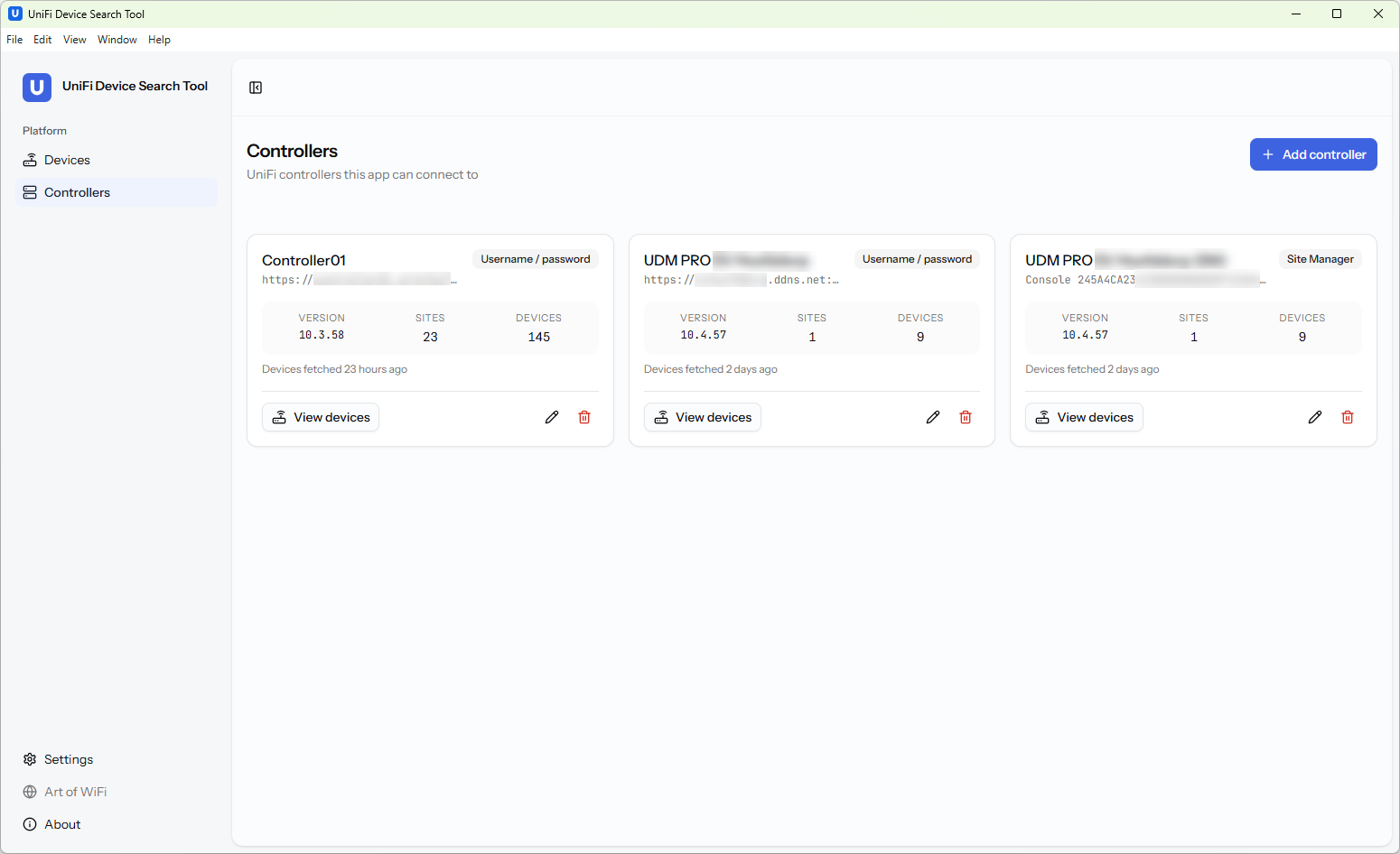
Manage multiple UniFi controllers
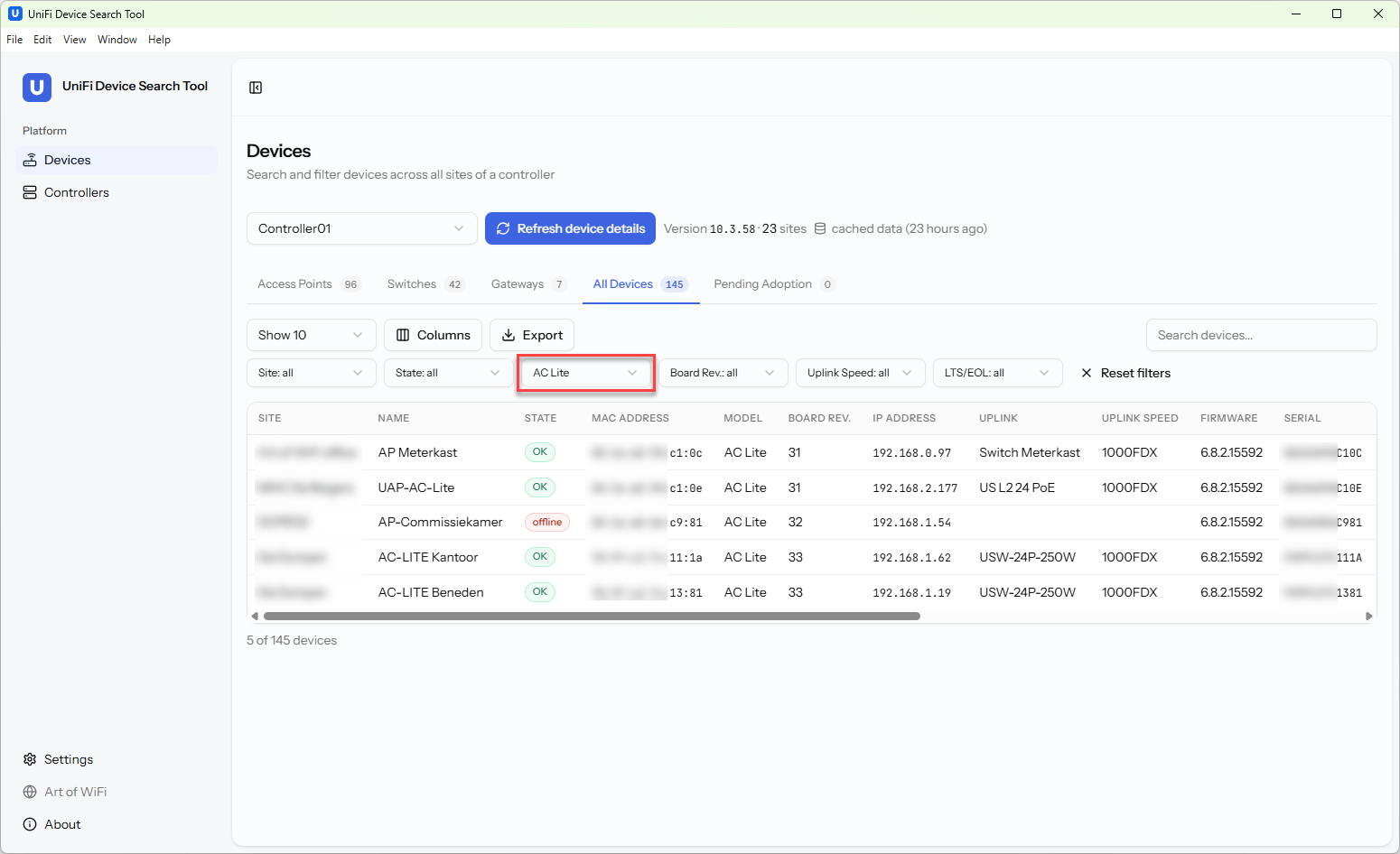
Per-column filters
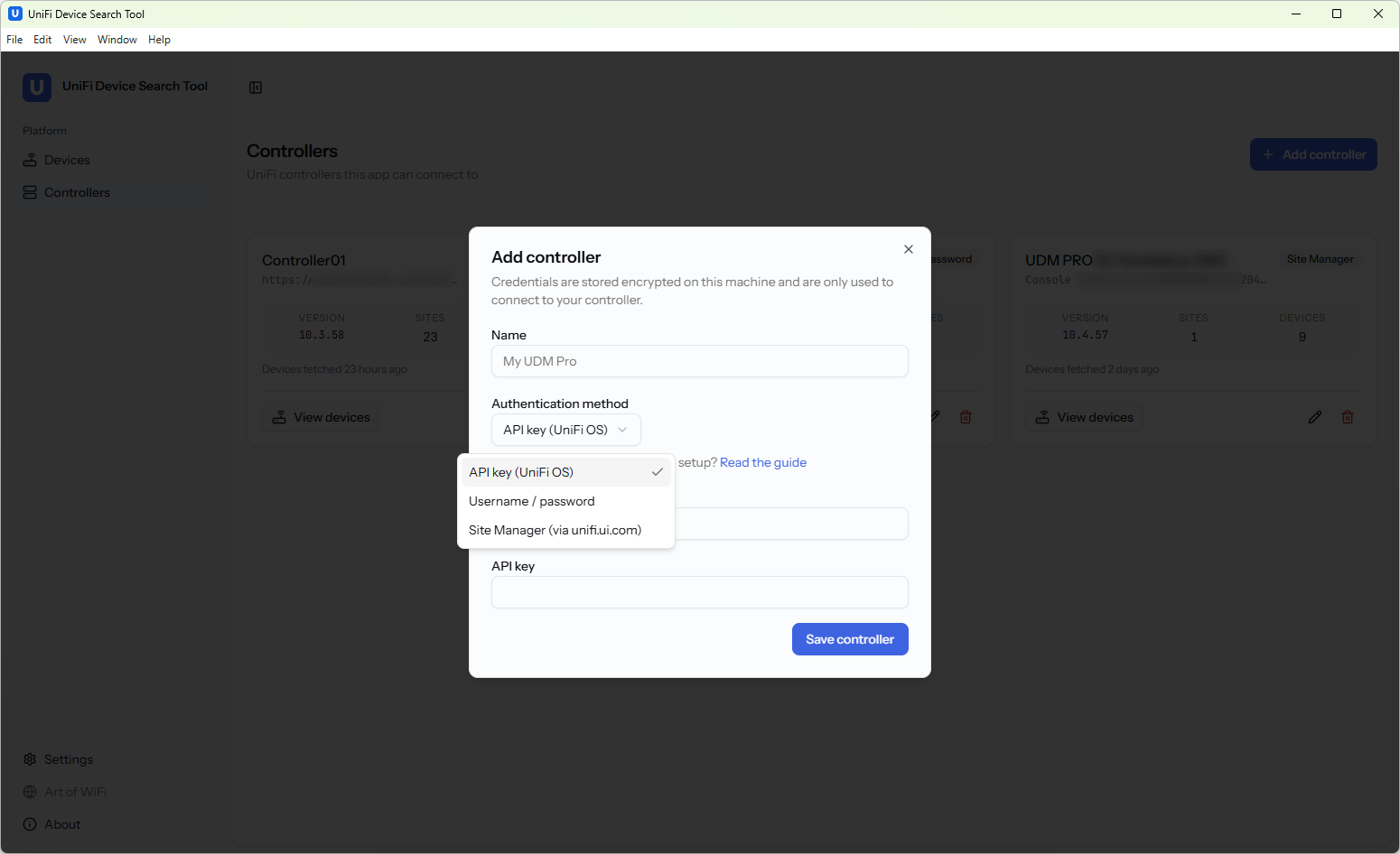
Add controller with three auth methods
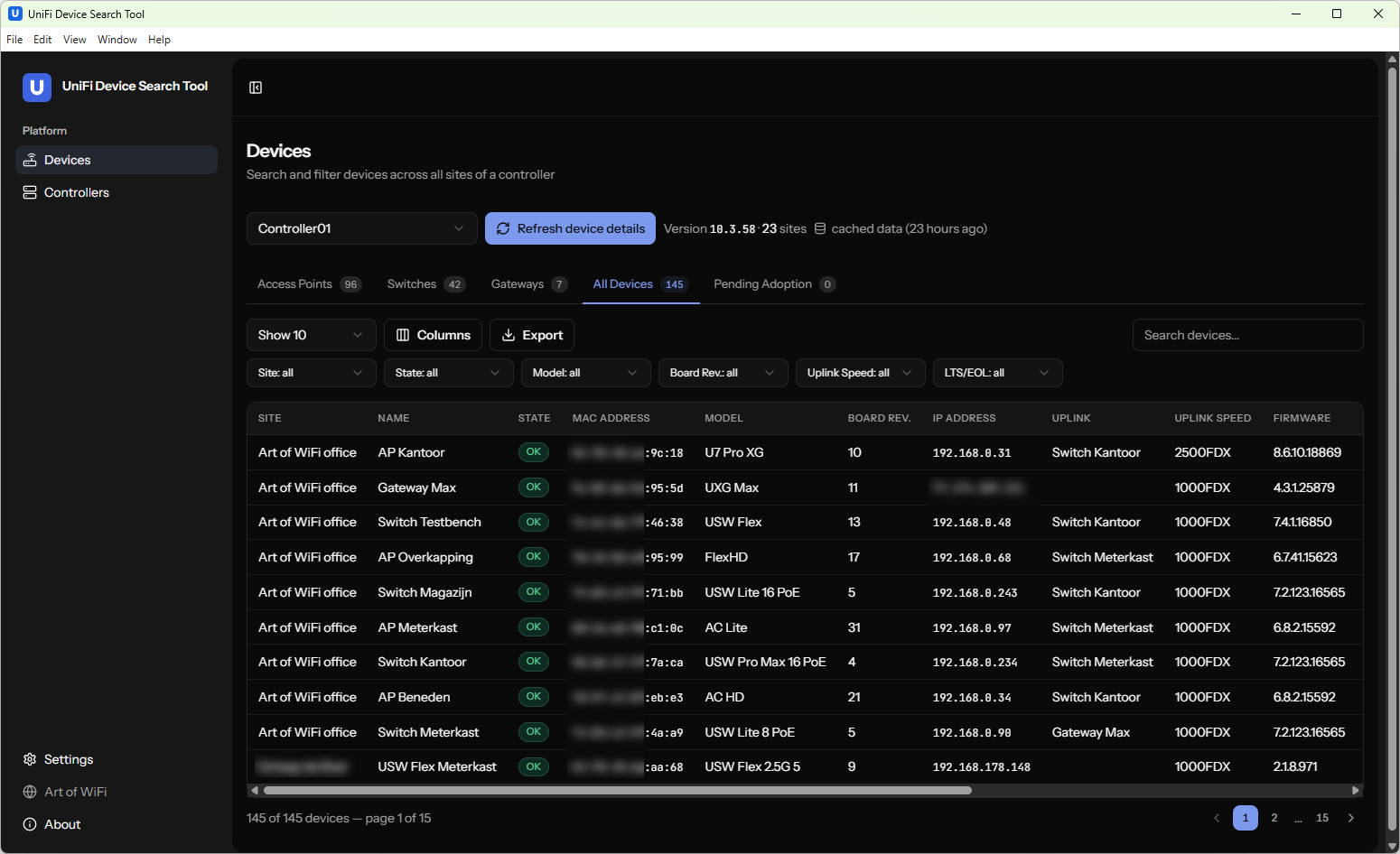
Dark mode
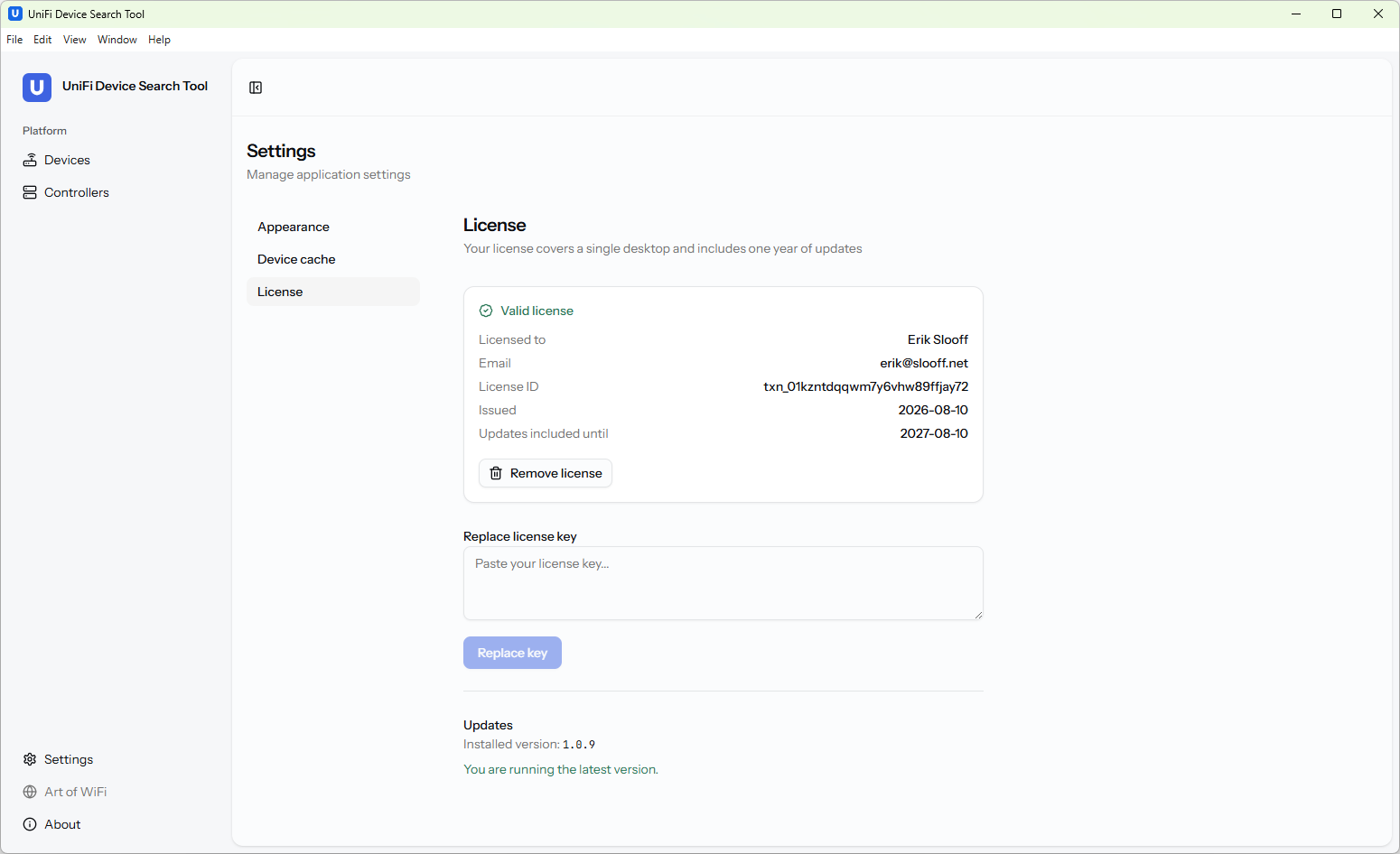
License and updates
Frequently Asked Questions
Do I need a web server or PHP to use the Windows edition?
No. The Windows edition is a native desktop app — install the ~117 MB installer, paste your license key, and connect your first controller. That's it. No PHP, no web server, no SSL cert, no domain. This is the key difference from our classic self-hosted UniFi Device Search Tool.
How does licensing work?
One-time purchase, price shown above (excluding VAT). License covers a single desktop and includes 12 months of updates. Activation is offline — paste the key from your purchase email and the app verifies it locally. No account is needed. When the 12-month update window ends the app keeps working forever; you just stop receiving new updates until you renew.
Will Windows warn me when I install it?
Possibly, for now. Every release of the UniFi Device Search Tool for Windows is code-signed through Microsoft's Azure signing service under our Microsoft-verified company identity — but Windows SmartScreen also tracks how often software has been installed, and newly released versions start with little history. Until a release builds that track record, you may see a "Windows protected your PC" notice.
Verifying the installer takes five seconds: click More info and confirm the publisher reads Art of WiFi B.V. — Microsoft validated that identity before issuing our signing certificate. Then click Run anyway. The warning disappears on its own as installs accumulate.
Can I use it in an air-gapped environment or without internet?
Yes. License verification is fully offline after the initial activation. The app only needs network access to reach your UniFi controllers — if those live on an air-gapped network, the app works entirely within that network. There is no phone-home requirement.
How does this compare to the classic self-hosted UniFi Device Search Tool?
Same team, same underlying UniFi API expertise, different delivery model. The classic edition is a PHP web app you host on your own server (Linux/nginx/Apache) — one install can serve a whole team via a web browser. The Windows edition is a native desktop app for individual use with zero infrastructure — install and go. Choose based on whether you want a team-shared web tool or a personal desktop app.
Which UniFi versions are supported?
It works with UniFi OS Consoles (UDM, UDR, UCG, UXG, Cloud Key), UniFi OS Server, and the classic Network Application. All recent Official Release and Early Access versions are supported.
Can I connect to multiple UniFi controllers?
Yes. Store any number of controller profiles and switch between them from the dashboard. Credentials for each controller are encrypted at rest on your machine and never transmitted anywhere except to that controller.
What connection methods are supported?
Three: a local admin account (classic username/password), a Network Application API Key (avoids MFA friction; works with UniFi Fabric members), or the Site Manager API via unifi.ui.com (reaches controllers you cannot reach directly; also works with UniFi Fabric members).
Does it work with UniFi Fabric?
Yes. Local admin accounts are not available on controllers that have joined a UniFi Fabric, but both the Network Application API Key and the Site Manager API (via unifi.ui.com) work with Fabric members. Use the API Key when you have direct network access to the controller, or the Site Manager API when you don't.
Does the app store or transmit my controller passwords?
Credentials are stored encrypted at rest on your machine and are only ever used to authenticate against the specific controllers you have configured. They are never transmitted to Art of WiFi or any third party. There is no telemetry, no analytics account, no server-side database of your controllers.
Can I export data to CSV or Excel?
Yes. Any tab view can be exported to CSV or Excel, respecting the currently applied filters and visible columns. Useful for audits, RMA planning, or handing a fleet inventory to a colleague.
Does the app support dark mode?
Yes. The app follows your Windows theme automatically (light or dark) and can be pinned to a specific mode in Settings. The device table, filters, badges, and dialogs are all polished for both themes — not just inverted colors.
What happens when my 12-month update window ends?
The app keeps working forever with all the features you already have. You simply stop receiving new versions until you renew. A separate "1-Year Update Extension" product lets you extend the update window whenever it suits you.
How do I get the license key after purchase?
Immediately after checkout, Paddle triggers our licensing backend and you receive an email with the license key. Copy the key from the email and paste it into the activation screen the first time you launch the app.
Is there a macOS or Linux version?
Not as a native desktop app yet. Our classic self-hosted UniFi Device Search Tool is a PHP web app and runs on Linux, macOS, or any environment with PHP — so if you have a server, you can use that today. A macOS-native desktop edition is on the roadmap.